
How to Set Up WhatsApp Business API (Step-by-Step Guide for 2025)
If your business wants to scale conversations, automate customer engagement, or give teams a powerful communication channel, the WhatsApp Business API is the real game-changer. It gives you features the normal WhatsApp app cannot, team inbox, automation, AI chatflows, broadcasts, CRM syncing, analytics, and more.
But the biggest question remains:
How do you actually set up the WhatsApp Business API?
This guide breaks it down in the simplest way possible from verification to number approval to going live with automation.
What Is WhatsApp Business API?
The WhatsApp Business API is Meta’s official solution for medium to large businesses to manage WhatsApp at scale.
It lets you:
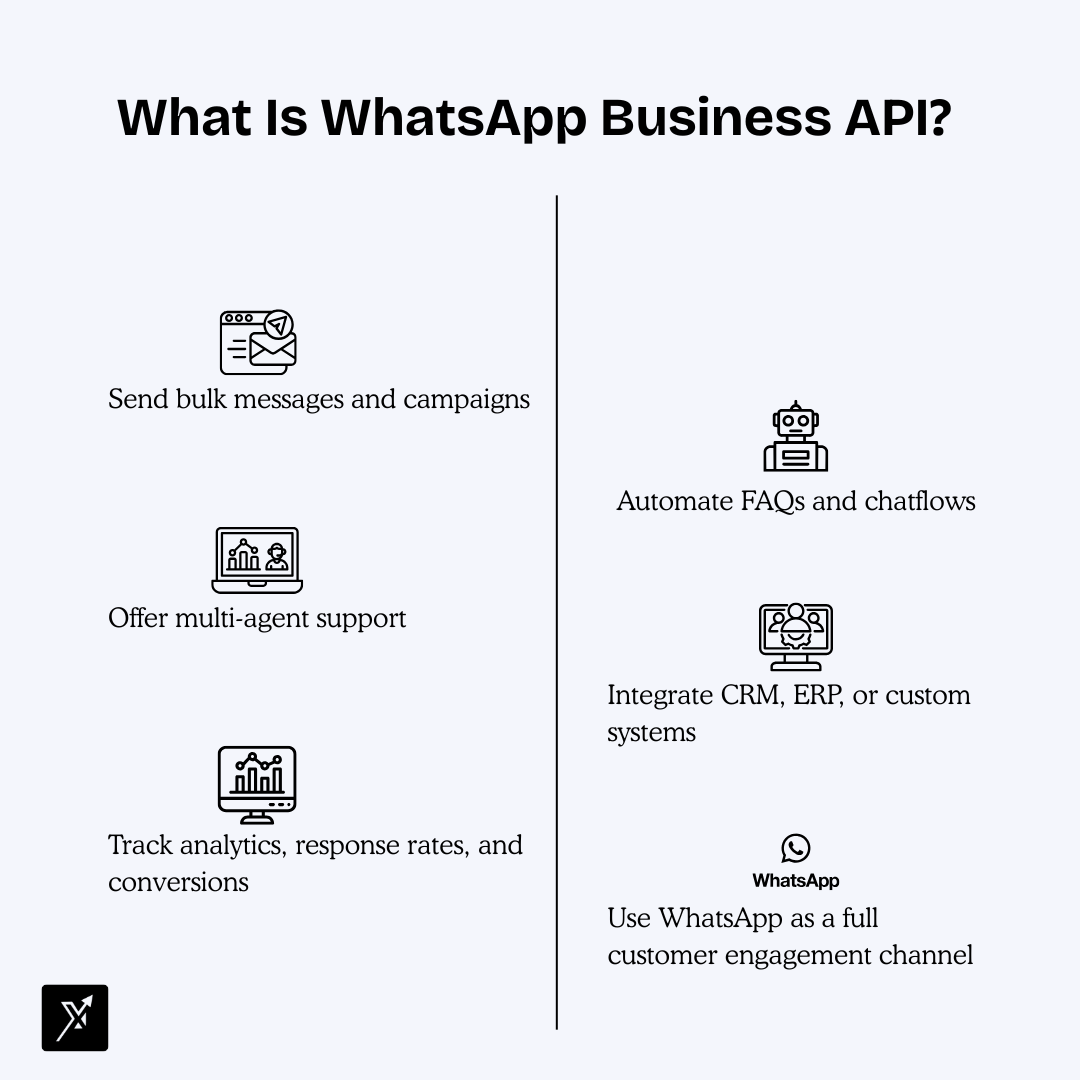
Send bulk messages and campaigns
Automate FAQs and chatflows
Offer multi-agent support
Integrate CRM, ERP, or custom systems
Track analytics, response rates, and conversions
Use WhatsApp as a full customer engagement channel
Unlike the WhatsApp app, the API does not have an interface, you need a platform like Nextel, which gives you dashboards, automation, templates, and team tools on top of the API.
Why Businesses Need WhatsApp Business API
Your team can reply from one shared dashboard
You can automate onboarding, sales flows, reminders
Campaigns reach a 95%+ open rate
No device dependency
Highly scalable and secure
Works seamlessly with CRMs & backend systems
Prerequisites Before You Start
Before applying for the API, make sure you have:
✔ A verified Facebook Business Manager
✔ A Facebook page connected to the business
✔ A phone number that is not active on WhatsApp currently
✔ Business documents (GST certificate, PAN, website domain, etc.)
✔ Access to the Owner/ Admin Meta Business account
Step-by-Step: How to Set Up WhatsApp Business API
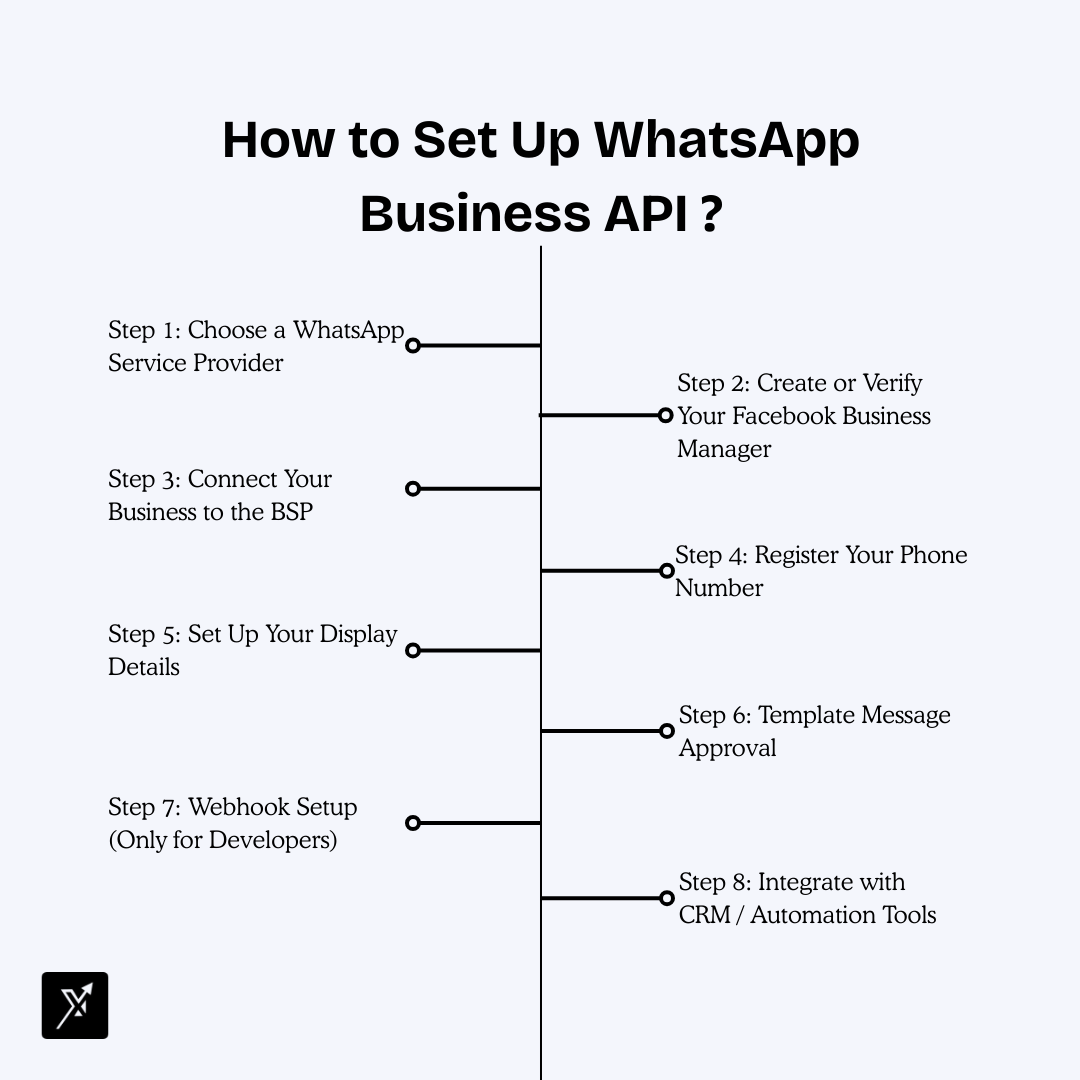
Step 1: Choose a WhatsApp Service Provider
Meta doesn’t give API access directly businesses must use an approved SP like:
Nextel
Twilio
360Dialog
Infobip
MessageBird
If you're using Nextel, the entire onboarding becomes faster, dashboard-ready, and UI-driven.
Step 2: Create or Verify Your Facebook Business Manager
Meta will only allow WhatsApp API access if your business is verified.
You’ll need to provide:
Business name
Legal documents
Business address
Website URL
Phone number
After submitting documents, Meta usually verifies businesses in 24–72 hours.
Step 3: Connect Your Business to the BSP
Once inside the platform ( Nextel):
Click “Connect WhatsApp”
Log in with your Facebook Business Manager
Select the business you want to connect
Grant permissions
Choose or add your WhatsApp phone number
This step links your Meta business account with the BSP platform.
Step 4: Register Your Phone Number
You will be asked to:
Enter the number
Choose verification method (SMS or call)
Enter OTP
Once verified, the number is officially registered for the WhatsApp API.
You cannot use this number on the WhatsApp app anymore unless you remove it from the API.
Step 5: Set Up Your Display Details
When your profile goes live, customers will see:
Business name
Profile photo/logo
Description
Website
Category
Support email
Make sure these reflect your brand and build trust.
Step 6: Template Message Approval
To send outbound messages (campaigns, reminders, promotions), Meta requires approved templates.
Types of templates:
Marketing (offers, campaigns, updates)
Utility (notifications, order updates)
Authentication (OTP, login codes)
Template Writing Tips:
Keep it clear and contextual
Avoid spammy words (“free free free”, “urgent”, “buy now”)
Use placeholders where needed
Step 7: Webhook Setup (Only for Developers)
If you’re integrating your own system, set up a Webhook URL. Most platforms like Nextel handle webhooks automatically, so developers only use this when doing custom builds.
Step 8: Integrate with CRM / Automation Tools
Once live, you can connect WhatsApp with:
Zoho
Google Sheets
Leadsquared
Justdial
TradeIndia
Custom backend via API
Nextel already provides:
Drag and Drop Chatflows
Auto-replies
Routing to teams
AI Powered Chatbots
Lead capture
Campaign analytics
Pricing: How WhatsApp API Pricing Works
Cost has two parts:
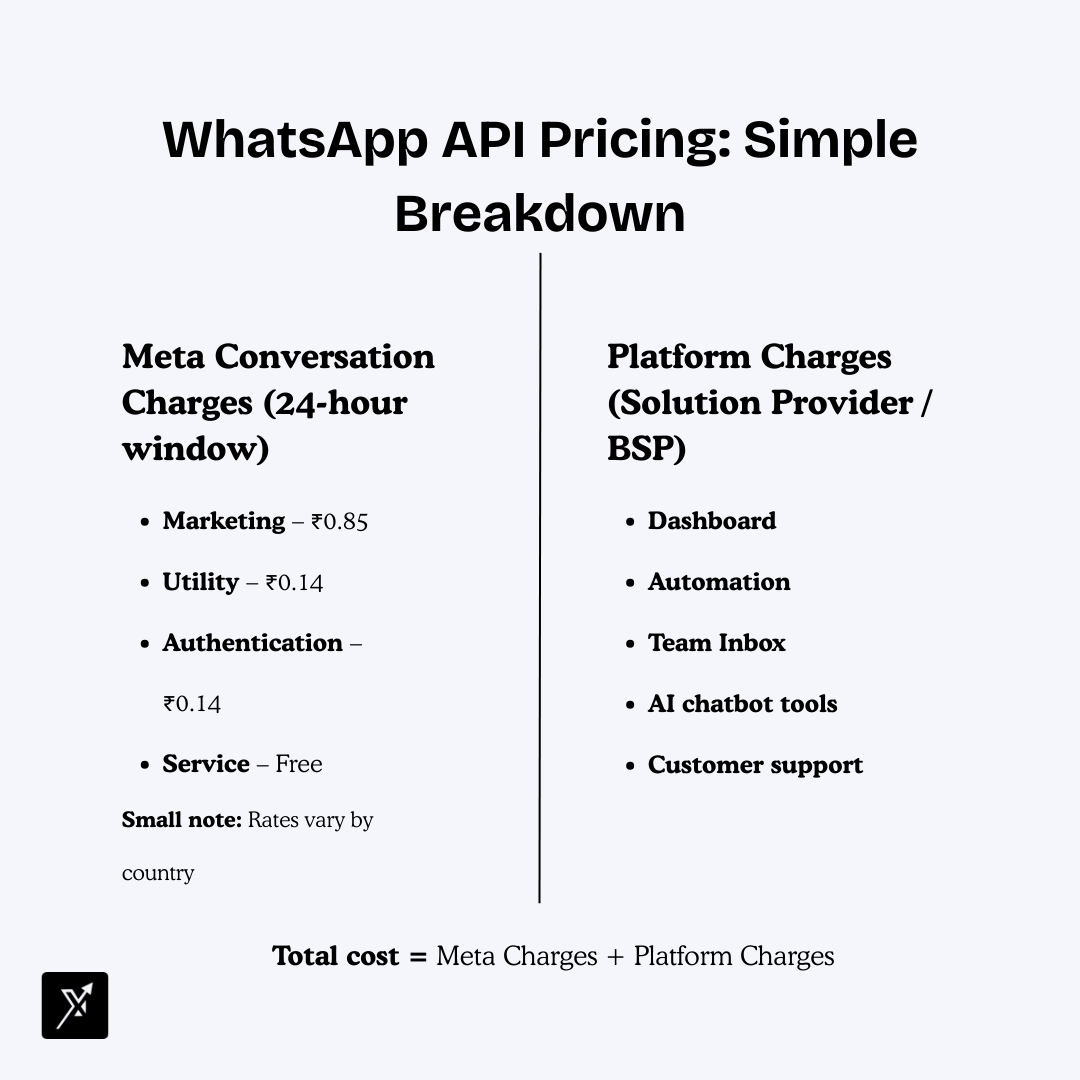
1. Conversation Charges (Meta charges per 24-hour window)
Meta (WhatsApp) bills businesses based on conversation categories, and each conversation opens a 24-hour messaging window. You’re charged once for that window, not per message.
Here are the four types:
• Marketing – 85 paisa per conversation
Used for promotional messages like offers, product launches, reminders, and broadcast campaigns. This is usually the costliest category.
• Utility – 14 paisa per conversation
Used for essential updates such as order updates, payment confirmations, and shipping alerts. Cheaper because these are transactional messages.
• Authentication – 14 paisa per conversation
Used for sending OTPs or login verification messages. Made affordable to encourage secure identity verification.
• Service – Varies by country
Used when customers message you first and you respond. Pricing for service conversations differs across regions, so businesses pay depending on where the user is located.
2. Platform Charges (Your Solution Provider’s fee)
Apart from Meta’s official charges, your WhatsApp BSP or automation platform (e.g., Nextel, Wati, Interakt, DoubleTick, etc.) charges an additional fee for using their software.
This typically covers:
• Dashboard
A unified interface to manage customers, chats, broadcasts, analytics, and workflows.
• Automation
Tools for auto-replies, chat journeys, keyword triggers, chatbot flows, and scheduling.
• Chat Inbox
A team inbox where multiple agents can reply, assign chats, add notes, and track conversations.
• AI Tools
AI chatbots or assistants that help automate FAQs, sales queries, order tracking, and more.
• Support
Access to onboarding help, troubleshooting, training, and account management.
Best Use Cases for WhatsApp Business API
Sales
Lead qualification
Automated follow-ups
Product catalog sharing
Abandoned cart recovery
Support
Ticket resolution
Multi-agent chat
Automated FAQs
Marketing
Broadcast campaigns
Offer announcements
Event reminders
Operations
Alerts
Transaction updates
Order tracking
Troubleshooting: Common Issues & Fixes
1. Number Already Registered
→ Remove it from WhatsApp app and try again.
2. Business Verification Not Approved
→ Ensure legal details exactly match government documents.
3. Template Rejections
→ Avoid sensitive or promotional words. Keep messages neutral and helpful.
4. Low Message Delivery
→ Warm up your templates
→ Maintain good engagement
→ Keep opt-ins clean
Setting Up WhatsApp Business API Is Easier Than Ever
With a good SP (like Nextel), setting up WhatsApp API is no longer a technical process.
Businesses get:
Ready dashboard
Templates
Automation tools
CRM integrations
Analytics
Quick onboarding
Whether you’re a startup or an enterprise, WhatsApp API is one of the most powerful upgrades you can make for sales, support, and customer engagement.